From the sublime to the ridiculous.
01/31/2022 - Mike Wazowski cipher.
//Myszkowski cipher uses a key to rearrange a message. It only works if the message length is a multiple of the key length. This example message is 90 characters without spaces, which is exactly 15 times longer than the 6 character key.
//Key://Input:
//Output:
//Revert:
It took about 4 days to figure out the encipherment, and about 8 days to figure out the revert function. Though I was ill...
First, the easy part: Very carefully making a mess of things.
Encipherment starts with uppercasing the key and message, and removing spaces. Also create the Out variable as a function-level for later.
-
message = message.toUpperCase().replace(/ /g,"");
key = key.toUpperCase();
var out = "";
//This cipher works by looping it around the key length before rearranging the key alphabetically. It's a nest of loops. So we start by breaking the message into key-sized chunks with the outermost loop, cycle through the caps alphabet in order, then cycle throgh the message's actual letters within that. The outermost loop creates the Current Message Chunk from which the innermost loop extracts the current letter.
-
for (messageChunkIndex = 0;messageChunkIndex<message.length;messageChunkIndex+=key.length) {
-
var currentMessageChunk = message.substring(messageChunkIndex,messageChunkIndex+key.length);
for (currentAlphaCode = 65;currentAlphaCode<91;currentAlphaCode++)
-
var currentAlpha = String.fromCharCode(currentAlphaCode);
for (messageIndex=0;messageIndex<currentMessageChunk.length;messageIndex++) {
-
var msgLetter = currentMessageChunk.substring(messageIndex,messageIndex+1);
//The innermost loop checks if the key at the current location matches the middle loop's alphabet letter - if so, the message letter is written to the Out variable. Then close all the loops, return the Out variable, and close the function.
-
var keyLetter = key.substring(messageIndex%key.length,messageIndex%key.length+1);
if (keyLetter == currentAlpha){
out += msgLetter;
return out;
Now the hard part: Getting back to where we were in the first place.
Decipherment begins with copypasta of the first section:
-
message = message.toUpperCase().replace(/ /g,"");
key = key.toUpperCase();
var out = "";
//Set up the Current Message Chunk in the outer loop, just as before. Set it up as an array, and the key as keySplit also an array.
-
for (messageChunkIndex = 0;messageChunkIndex<message.length;messageChunkIndex+=key.length) {
-
var currentMessageChunk = message.substring(messageChunkIndex,messageChunkIndex+key.length);
var currentMessageChunk = currentMessageChunk.split('');
var keySplit = key.split('');
//Cycle through the current key in order - this replaces the alphabetic loop from the first function, as here the key starts alphabetized and is returned to key-order - and the message with it. The key is alphabetized into an array as keySorted.
-
for (KeyIndex = 0;KeyIndex<keySplit.length;KeyIndex++) {
-
var keySorted = key.split('').sort();
//In the innermost loop, cycle through the the letters of each message chunk as an array. The individual letters are set up from their respective indices. The Key Sorted Index is also set up, which is the location of the current key letter within the alphabetized array. Keeping the key columns in order is essential to making this decipherment work correctly.
-
for (messageIndex=0;messageIndex<keySplit.length;messageIndex++) {
-
var keySortedLetter = keySorted[messageIndex];
var keySplitLetter = keySplit[KeyIndex];
var keySortedIndex = keySorted.indexOf(keySplitLetter);
var msgLetter = currentMessageChunk[keySortedIndex];
//If the sorted and split keys have the same letter, add it to the Out variable. And remove the current letter from each of the arrays, and reset to the start of the message chunk loop again.
-
if (keySortedLetter == keySplitLetter){
-
out += msgLetter;
keySplit.splice(KeyIndex,1);
keySorted.splice(keySortedIndex,1);
currentMessageChunk.splice(keySortedIndex,1);
messageIndex=0;
//If there's only one letter left in the chunk, add that to the Out variable too - this is a bugfix because it kept leaving off the last letter in each message chunk. Close all the loops and return the Out variable before closing the function.
-
if (currentMessageChunk.length == 1) {
-
out += currentMessageChunk[0];
return out;
//As with Porta, this could be extended to better handle spaces and other punctuation.
01/28/2022 - NASA conspiracy!
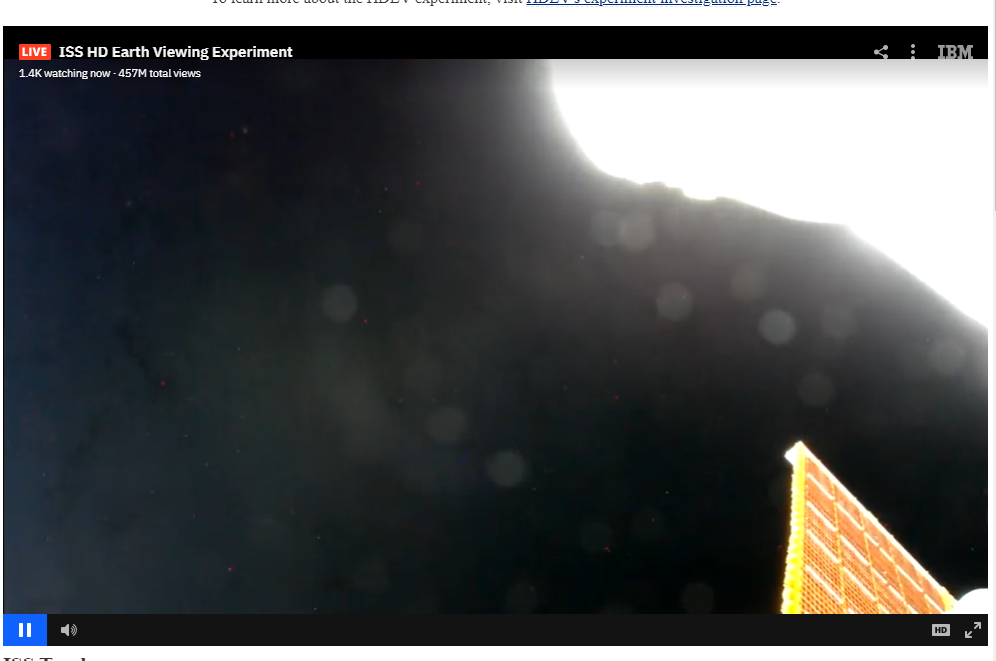
Looking at the ISS stream showed this weird image:
Checking again a few hours later reveals the truth:
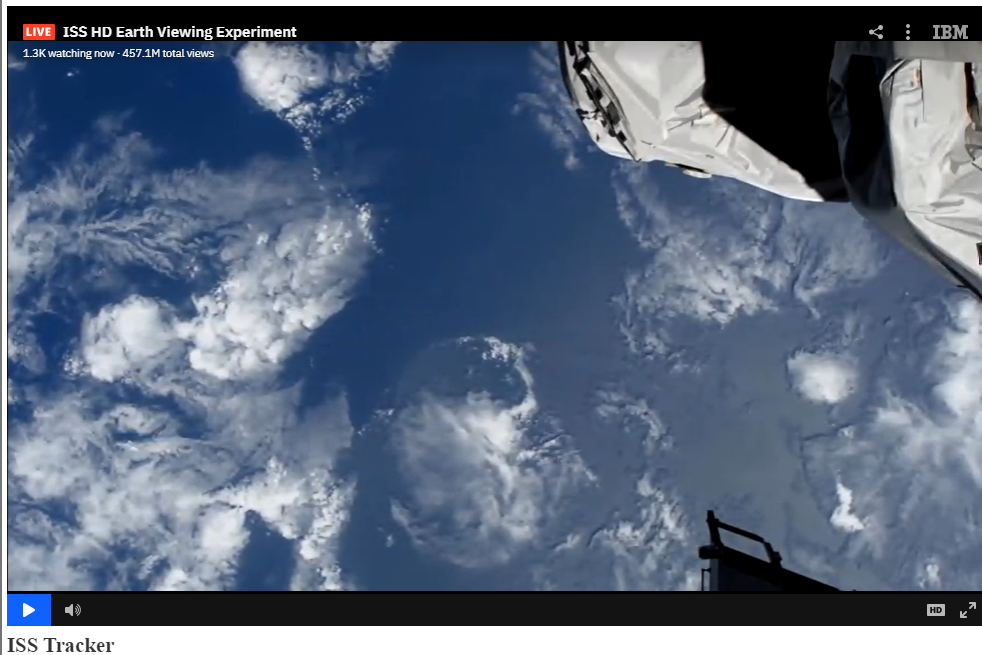
I've been watching too many UFO videos lately. The ISS was viewing Earth's dark side, but wasn't in Earth's shadow - hence the dark side of the Earth was washed out by the much brighter parts of the ISS. Occam's razor suggests amateur photography mistakes are much more likely than interstellar conspiracy.
01/26/2022 - Powershell default color.
Windows 11 is available for prerelease install. Some of the features aren't quite complete - like hiding favorite files from the start bar.
And some cheese definitely gets moved. Powershell changes from the pretty dark blue from before, to a very dark grey. The grey is nearly black, but makes sense when you convert to hex:
- The classic Powershell Blue uses full-saturation #FFFFFF text on a #012456 (dark blue) background.
- New Powershell Black uses #CCCCCC (light grey) text on a #0C0C0C (very dark grey) background.
It's subtle, like a joke in HTML color language. Technically the new colors are slightly less visible, as (204 - 12) * 3 = 576, while 254 + 219 + 169 = 642. As I discussed back in August, the "minimum contrast" for visibility is a total difference of 500, which the new scheme meets. But it has 66 less total contrast than the classic Blue scheme. Given that this color space is 765 units large, the new scheme's difference of 66 color points makes it 8.6% less visible than the classic Blue. Something to keep in mind for low visibility and low brightness situations.
If all you want is the normal Powershell colors again, just right click the top bar > Properites > Colors tab, and enter these values for the background:
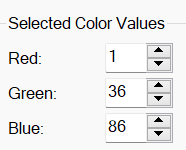
- Red: 01
- Blue: 36
- Green: 86
Then select the Screen Text radio button, and update the text color:
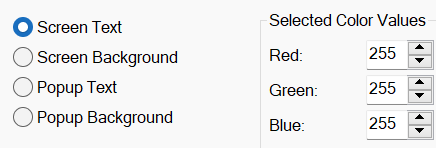
- Red: 255
- Blue: 255
- Green: 255
Then click "OK" and you're back in blue. Now you'll just need something borrowed.
01/23/2022 - Steam Heat.
Nuclear power is a hot topic - indeed a charged one, electric with opinions. All of them emotional - don't we "trust" the subatomic particles? Or are we some kind of uneducated yeller-bellied chicken-herder?
What is Nuclear Fission Power?
Nuclear fission power is the energy-as-velocity carried by subatomic particles as they "drip" off their oversized neuclei. Through Boltzmann's constant, we humans perceive this velocity as temperature, and use this temperature to perform thermodynamic work. Most of our tools use electricity these days, so this temperature needs to be converted to electricity - and the most well-known method for doing this is a steam engine.
Steam engines produce tremendous torque and massive work output, but are very unsafe as they are prone to exploding. This is a centuries-old issue in railways, and a huge reason for the push away from steam locomotives and into the less-powerful but much safer diesel-electric, and gas-turbine locomotives which use so much fuel that they become a money pit. Likewise with navy vessels, steam boilers allow great speed but have been replaced by much safer diesel engines on virtually all craft. Steamboats are extremely uncommon in the 21st century. Nuclear warships were common, and then 2 sank - the US Navy has to monitor these to ensure they don't become critical disasters. A nuclear warship requires a huge team of highly-trained engineers, and costs so much that they only make sense when oil is more than $90 per barrel.
Failing to control the heat source has been the cause for every modern nuclear meltdown, because the technology relies on generating immense heat to boil water very quickly. A failure to correctly insert the control rods happened in Fukushima due to an electric grid outage from the earthquake, and in Chernobyl due to a mechanical malfunction. At Three Mile Island the heat caused a meltdown even with the control rods inserted correctly.
If steam isn't a viable technology, let's try this hot new tech: Steam!
Instead of avoiding the problematic technology, many want to patch it. One suggestion is to make the reactor fail-safe instead of fail-dangerous. Some of these designs include the Molten Salt reactor, which is designed to meltdown. Now we're compounding one problematic technology with the problematic part of another technology! With these powers combined, we can destroy the planet!
Other options involve using thorium - which is much more difficult to weaponize, as it's less potent. But thorium would still be coupled with the same problematic steam technology from the 17th century.
It's the 21st century - aren't there other options?
Betavoltaics are a low-power nuclear fission technology that have been used in satellites for more than 60 years. These capture beta radiation (aka fast electrons), creating electricity similar to a solar panel. Like batteries, each one can provide just a small charge, but hundreds of these could power a house or maybe even a car. A downside for the energy industry is that they last for decades, so you won't have customers stopping by daily to fill up their betavoltaic systems. For the consumer, it would be like a solar-powered car or house - even at nighttime or in a heavy storm. Future reasearch could unlock "alphavoltaics" which use the helium ion alpha particle in the same way.
Alpha-Betavoltaic Circuit - Like putting 2 terminals at either end of a radiation source, and place a permanent magnet nearby to direct helium ion alpha particles towards one end, and naked electron beta particles towards another end, creating an electric circuit.
Gamma ray capture - this would unlock both numerous nuclear fission energy sources, as well as possibly antimatter energy sources. Matter-antimatter annihilation releases immense energy, with all of it split between just 2 photons. Gamma rays are known for causing "bit flips" - adding an electric charge to a memory cell, so it changes from a 0 to a 1. This issue is so prevalent in our terrestrial electronics that we use basic error correction to make it invisible, and so bad in our orbital electronics that satellites run multiple sets of hardware that constantly reload each others memory cells. Treating these memory cells like capacitors could allow us to usefully discharge them instead, extracting some of the overwhelming energy of these photons.
Internal-criticality engine - This would resemble an internal combustion engine, with a nearly-critical mass on each piston and another at the end of each cylinder. The pistons would push the two masses together until the forces of the subatomic particles become critical enough to repel the piston.
Fusion - this is the new "holy grail" for the industry, but will be more interesting as a materials source than as a power source. It has an even more massive heat problem, as its operational goal is self-sustaining solar temperatures and pressures.
I don't even go here...
As a nuclear energy industry outsider, I'm likely just scratching the surface for options. Despite the vast environmental messaging prevalent in the modern ad-scape, US American choices are still heavily engineered to sell oil, gasoline, and other petroleum products on a daily basis. Did you know that 50 MPG cars have been common in Europe for decades, but are still extremely rare in the USA?
01/20/2022 - Miles O'Kilometer.
//Adding a conversion calculator to the 01/12/2022 collection: Miles to kilometers and back.
01/17/2022 - Porta cipher.
//This is a neat reciprocal cipher - copy the output and paste back into the input and it will show your original message. This means you can use the same tool (like this page) to both encrypt and later decrypt the message.
//Key://Input:
//Output:
//Code
//This took a while to sort out. First, set up the two halves of the alphabet. Then, make everything uppercase and remove all spaces. This should be extended to either remove all punctuation, or also handle punctuation in the halves of the alphabet.
var bet = ["N","O","P","Q","R","S","T","U","V","W","X","Y","Z"];
function getPorta(message,key = "PORTA"){
-
message = message.toUpperCase().replace(/ /g,"");
key = key.toUpperCase();
var out = "";
//Foreach letter, set up msgLetter as the current letter, keyLetterCode as the current key's code, and msgLetterCode as its code. The key uses a modulus (%) to infinitely wrap around it.
-
for (messageIndex=0; messageIndex < message.length; messageIndex++) {
-
var msgLetter = message.substring(messageIndex, messageIndex+1);
var keyLetterCode = Math.floor((key.substring( messageIndex%key.length, messageIndex%key.length+1 ).charCodeAt(0)-65)/2);
var msgLetterCode = msgLetter.charCodeAt(0)-65;
//This part rotates the lower alphabet to the correct location - first it slices the alphabet from the key index to the end, then pushes those before the key index into it. I had this as another function, but Javascript's async nature means that would finish after the code below it - luckily it wasn't very long and didn't clutter up the function much.
-
var portaBeta = bet.slice(keyLetterCode, bet.length);
for (arrayFillIndex=0; arrayFillIndex < keyLetterCode ;arrayFillIndex++) {
-
portaBeta.push(bet[arrayFillIndex]);
//The last part finds the msgLetter's location in one array, and outputs that same location in the other array.
-
if (msgLetterCode >12) {
-
out += alpha[portaBeta.indexOf(msgLetter)];
-
out += portaBeta[alpha.indexOf(msgLetter)];
return out;
//And that gives us a reversable cipher. Next steps involve working to replace the key by inferring it from the message somehow. The hurdle here is getting it to be reversable.
01/16/2022 - Relativistic equations.
//Lorentz Factor
//This is all based on the Lorentz factor, which describes how matter changes as it moves through space:
-
return (1 / Math.sqrt(1- (Math.pow(Velocity,2) / c_Squared)));
//>returnLorentzFactor()
//>
//Lorentz Multiple
//Next, we multiply the input velocity by the factor by its respective velocity, to give relativistic speed as seen by an observer.
-
return (Velocity * (returnLorentzFactor(Velocity)));
//> returnLorentzMultiple()
//>
//Time Dilation
//One of the more interesting impacts of using relativistic speed is living longer than those who don't use it.
-
return (returnLorentzFactor(Velocity)) * timeObserver;
//> returnTimeDilation(, )
//>
//Length Contraction
//Another interesting impact is that you are thinner while using relativistic speeds, compared to someone with a lesser speed. Just don't lay down or you'll become shorter instead.
-
return Length/(returnLorentzFactor(Velocity));
//> returnLengthContraction(, )
//>
//Relativistic Mass
//Sadly the temporary thinness is accompanied by temporary weight gain:
-
return (returnLorentzFactor(Velocity))*restMass;
//> returnRMass(, )
//>
//Relativistic Momentum
//Being slightly more massive means you're slightly more momentous.
-
return (1 / Math.sqrt(1+ (Math.pow(Velocity,2)/(Math.pow(Mass,2) * c_Squared))));
//> returnRMomentum(, )
//>
//Relativistic kinetic energy
//This is a form of E2=(mc2)2+(mv)2(c)2, which leaves out the momentum half.
-
return ((returnLorentzFactor(Velocity)) -1) * restMass * c_Squared;
//> returnRKE(, )
//>
//Escape Velocity
//Escape velocity is the minimum speed a ballistic object needs to escape from a massive body such as Earth. It represents the kinetic energy that, when added to the object's gravitational potential energy, (which is always negative) is equal to zero.
-
return returnRMomentum (Math.sqrt( (2 * GravitationalConstant * restMass) / Radius))
//> returnEscapeVelocity(, )
//>
01/14/2022 - The other half completes the whole.
Write Element puts the value into any HTML element. Just give it the Element ID and it will display the text or value inside that element.
-
var $elementType = JSON.stringify(document.getElementById($elementId).type);
if (($elementType == '"text"')
|| ($elementType == '"select-one"')
|| ($elementType == '"number"')) {
Similarly simple - gather the element's type, and update the appropriate value based on this.
-
document.getElementById($elementId).value = $source;
-
if (document.getElementById($elementId).tagName == 'IMG') {
-
document.getElementById($elementId).src = $source;
else {
-
document.getElementById($elementId).innerText = $source;
This is the counterpart to yesterday's Read Element, and looks very similar because it performs the inverse function. This one excludes Textarea but includes Image, likely because I haven't used readElement on images, nor writeElement on textareas.
01/13/2022 - Frustration is the stepmother of invention.
Read Element gathers the value from any HTML element. Just give it the Element ID and it will give you the text or value displayed inside that element.
-
var $elementType = JSON.stringify(document.getElementById($elementId).type);
if (($elementType == '"text"')
|| ($elementType == '"textarea"')
|| ($elementType == '"select-one"')
|| ($elementType == '"number"')) {
Not too complex - gather the element's type, and return the appropriate value based on this.
-
return document.getElementById($elementId).value;
-
return document.getElementById($elementId).innerText;
I made this because I find it maddening for different element types to have the same data concept under different variable names. So I hid it in the imperative layer. My software design is generally to create an imperative layer, and a declarative layer on top. Read Element is a key imperative function in this paradigm, being widely used to simplify both the creation and the operation of many pages.
01/12/2022 - Conversion calculators.
Starting with Ft to Meter and back:
WebCoif makes this easy, with two functions that simplify reading and writing so much that you might have an emotional reaction. First, Read Element gets the value from any element, transform, and Write Element to output the value into the other field.
-
writeElement('meterInput',(readElement('ftInput')*0.3048))
And the complement for the other input field:
-
writeElement('ftInput',(readElement('meterInput')*3.28084))
Added to the oninput of each input field links the two fields in an easy to use but powerful way.
WebCoif is currently part of Gilgamech.js.
01/09/2022 - CSS popupdate.
Update to the 01/02/2022 post, to clean up formatting. First, lighten the default background from the solid blue to a color closer to sky blue:
-
.popup {
-
background: #9df;
Next, a little trick to keep the popup div centered is to center the text after setting the margins. These margins keep the popup within the window almost all of the time:
-
.popup span {
-
position: absolute;
/*margin: top right bottom left*/
margin: 15px 5px 0 -30px;
text-align: center;
...
The left margin pushes the popup span about 4 letters to the left of the parent span, so at least a few letters overlap. And the right margin setting forces the popup span to remain just inside the window. Still looking for a "Goldilocks" setting that's not too wide for Mobile and not too narrow for Desktop.
01/08/2022 - Relocation code snippet.
-
[string]$DefaultSecurityGroupID = "DEFAULTSG"
$currentServer = (Get-EC2Instance).Instances
[int]$CurrentSecurityGroupName = (Get-EC2SecurityGroup | where {$_.description -match "Created on"}).GroupName
$newSecurityGroupID = New-RdpSecurityGroup
Edit-EC2InstanceAttribute -InstanceId $currentServer.InstanceId -Group @($DefaultSecurityGroupID, $newSecurityGroupID)
Remove-EC2SecurityGroup -GroupId (Get-EC2SecurityGroup -GroupName $CurrentSecurityGroupName).GroupId -Force
01/07/2022 - When two (sets of columnar data) become one.
//ColumnMath transforms data from 2 columns, or one column and a constant, into a third column. This builds most of the tables on the Ingame Item page from just two data columns (cost and quantity) for recent games. It can perform basic math on two columns in a table and put the output in another column of the same table. It can even read from 2 different tables and write to a 3rd, can add the output column as a new column in the table (with specified or autogenerated name), and can add min/max formatting. Rows are sortable with the numerical sort function whose description is coming soon - that's an automatic function of addColumn, whose description is also coming soon.
//Here are the inputs:| Parameter | Type | Description | Valid Inputs | Notes |
|---|---|---|---|---|
| TableAid | string | Input A's table ID. | Table ID on page. | This will be the numerator for Divide and Percent functions. |
| inputACol | integer | Input A's column number in Table A. | 0 up to number of columns -1. | |
| TableBid | string | Input B's table ID. | Table ID on page (or "" to to specify a constant for Input B instead.) | This will be the denominator for Divide and Percent functions, and negated for subtraction functions. |
| inputBCol | integer | Input B's column number in Table B. | 0 up to number of columns -1. (If using a constant for Input B, put that constant here instead.) | |
| rowBAdj | integer | Adjust Input B down by this many rows. | 0 down to negative table length. | Used when comparing the current cell to the cell beneath. |
| TableOutid | string | Output table ID. | Table ID on page. | |
| outputCol | integer | Description | Output column number in the table. | Starting from 0 (zero). If this is an existing column, its contents will be replaced with this function's output. If this is 1 + the highest numbered column (aka this is 2 when there are 2 columns, as they will be 0 and 1) then it will add a new column to the table. |
| mathOperation | string | Description | "add","subtract","multiply","divide","percent","none" | Percent is Divide also by 100. |
| roundDigits | integer | Description | 0 to 16 (or higher?) | Rounds the output to the specified digits. (Low-value numbers might show oddly when rounded too much, and this works best at 2 and above.) |
| formatMaxOutput | Binary | Description | True or false. | Perform formatMax (green gradient based on ratio between min and max) on column after transform, for better visualization. |
| newOutColumnName | string | Header for new column. (Optional) | (Any string) | If outputCol would create a new column, this column becomes the column header. If blank, a new name is generated from Input column headers, any constant, and the math operation or verb. |
//The first section gathers the table body data for Tables A, Output, and B if it's not a constant.
-
var TableA = returnTablePart(TableAid,"TBODY");
var TableB;
var TableOut = returnTablePart(TableOutid,"TBODY");
if (TableBid != "") {
-
TableB = returnTablePart(TableBid,"TBODY");
//The second section sets up the new column and name autogeneration. The name is autogenerated from the input column headers and the operation being performed.
-
if (outputCol >= TableOut.children[0].children.length) {
-
if (newOutColumnName == null) {
-
var TableAHead = returnTablePart(TableAid,"THEAD");
var TableBHead = returnTablePart(TableBid,"THEAD");
var mathOperator;
var mathVerb;
switch(mathOperation) {
-
case "none":
-
mathOperator = "";
mathVerb = "";
break;
-
mathOperator = " + ";
mathVerb = " sum";
break;
-
mathOperator = " - ";
mathVerb = " change";
break;
-
mathOperator = " * ";
mathVerb = " multiple";
break;
-
mathOperator = " / ";
mathVerb = " rate";
break;
-
mathOperator = " % ";
mathVerb = " percent";
break;
-
mathOperator = " ? ";
mathVerb = " error";
break;
//The second half of column generation extracts the input headers, and populates the new output column name, before adding the new column.
-
if (TableBid != "") {
-
if (TableAHead.children[0].children[inputACol].innerText == TableBHead.children[0].children[inputBCol].innerText) {
-
newOutColumnName = TableAHead.children[0].children[inputACol].innerText + mathVerb;
else {
-
newOutColumnName = TableAHead.children[0].children[inputACol].innerText + mathOperator + TableBHead.children[0].children[inputBCol].innerText;
else {
-
newOutColumnName = TableAHead.children[0].children[inputACol].innerText + mathOperator + numToTextNotation(inputBCol);
addColumn(TableOutid,newOutColumnName);
//This fourth section sets up the for loop to go row-by-row, transforming the inputs into the output. Step one is extracting the two values to transform - input A from TableA, and input B from either TableB or as a constant. The output row is also identified.
-
for (var currentRow = (0-rowBAdj); currentRow < TableA.children.length; currentRow++) {
-
var childrenOfA = TableA.children[currentRow];
var childrenOfB;
var childrenOfOut = TableOut.children[currentRow];
var InputAText = textToNumNotation(childrenOfA.children[inputACol].innerText);
var InputBText;
if (TableBid != "") {
-
childrenOfB = TableB.children[currentRow+rowBAdj];
InputBText = textToNumNotation(childrenOfB.children[inputBCol].innerText);
else {
-
InputBText = textToNumNotation(inputBCol);
//This part performs the math operation and writes to the output cell.
-
switch(mathOperation) {
-
case "none":
-
childrenOfOut.children[outputCol].innerText = childrenOfA.children[inputACol].innerText;
break;
-
childrenOfOut.children[outputCol].innerText = numToTextNotation((InputAText *1) + (InputBText*1)","roundDigits);
break;
-
childrenOfOut.children[outputCol].innerText = numToTextNotation((InputAText *1) - (InputBText*1)","roundDigits);
break;
-
childrenOfOut.children[outputCol].innerText = numToTextNotation((InputAText *1) * (InputBText*1)","roundDigits);
break;
-
if ((InputAText *1) / (InputBText*1) == Infinity) {
-
childrenOfOut.children[outputCol].innerText = 0;
else {
-
childrenOfOut.children[outputCol].innerText = numToTextNotation((InputAText *1) / (InputBText*1)","roundDigits);
break;
-
if (((InputAText *1) / (InputBText*1)) *100 == Infinity) {
-
childrenOfOut.children[outputCol].innerText = 0;
else {
-
childrenOfOut.children[outputCol].innerText = numToTextNotation(((InputAText *1) / (InputBText*1)) *100 ","roundDigits);
break;
-
// No transform nor write
break;
//Divide and Percent detect Infinity and replace with zero, which is the Javascript output for a divide-by-zero. This uses zero into an error numeral, as discussed at the end of a previous post.
//Finally, if this is the last row and formatMax is true, perform formatMax on the column. (Had to do this here to make it async.)
-
if (currentRow+1 == TableOut.children.length+rowBAdj && formatMaxOutput == "true") {
-
formatMax(outputCol,TableAid);
//Future updates will likely replace the TableOutid with the TableAid if it's omitted, try to merge the two switch sections in some way, and create the output table if it's not present.
01/05/2022 - Programmatically add CSS styles.
//Colorify Div wraps a search term in a span and applies a CSS class to it. The upper section creates the Regex variable","and removes from the search term the extra escaping necessary for dollar signs:
-
var replaceRegex = new RegExp(replaceWord",""g");
replaceWord = replaceWord.replace("\\$","$");
//This section reads from the div and performs the replacing:
-
var str = document.getElementById(divid).innerHTML;
str = str.replace(replaceRegex","'<span class="' + replaceClass + '">' + replaceWord + '</span>');
//The last section cleans up any accidental duplicates and writes back to the div:
-
str = str.replace('<span class="<span class="'","'<span class="');
str = str.replace('</span></span>','</span>');
document.getElementById(divid).innerHTML = str;
//That might clobber other spans","so caution if you're a heavy span user","or if you're also using my popup code. This replaces a over 100 span tags in this and the previous posts.